Agents require some level of isolation to protect the host (your laptop); as a bonus the sandbox system can provide a convenient container for the work you are doing that lets you share and deploy seemlessly. Going a step further, the coding agent you already use can be used to scaffold out sandbox VMs and infrastructure on Heyo Computer.
Outside of the Sandbox
Agents such as Claude Code and Codex can control the lifecycle of sandbox VMs, manage local VMs, deploy cloud VMs, expose services to the internet, and manage peer-to-peer networking (think a built in ngrok). To make the most of this, install agent skills:
# from the Skill CLI:
npx skills add heyo-computer/skills

# also available from the heyvm CLI itself:
heyvm install-skills

# or get them from the public repo:
git clone https://github.com/heyo-computer/skills
Now you can use slash commands in your agent to drive the creation of VMs on your machine or the Heyo Computer cloud, e.g. /heyvm create a new Ubuntu VM in the US region
Inside the Sandbox
The VM sandbox is a perfect isolation mechanism for agent workloads. Heyo Computer provides flexible virtualization options that make it ideal for headless workloads, autonomous agents, and running an agenet remotely.
Let's create a new VM, grab a shell session, install OpenCode and expose its web-interface:
heyvm create --cloud \
  --backend libvirt \
  --region US \
  --image ubuntu:24.04 \
  --port 3000 \
  --name opencode
  Sandbox: opencode (dep-1f5f84ec)
Fetching bound URLs...
  Waiting for proxy endpoints (attempt 1/5)...
  Waiting for proxy endpoints (attempt 2/5)...
  Waiting for proxy endpoints (attempt 3/5)...
  Waiting for proxy endpoints (attempt 4/5)...
Deployed successfully!
  ID: dep-1f5f84ec
  Name: opencode

Next: push your code into the sandbox.
  heyvm archive-dir <your-dir> --name opencode-v1
  heyvm update opencode --archive <archive-id-from-step-above>


# Get a Shell:
heyvm sh opencode
> Connecting to sandbox shell…
> heyo:~$

# Install OpenCode and configure the web interface:
> heyo:~$ curl -fsSL https://opencode.ai/install | bash
> heyo:~$ OPENCODE_SERVER_PASSWORD=secret opencode web --port 3000
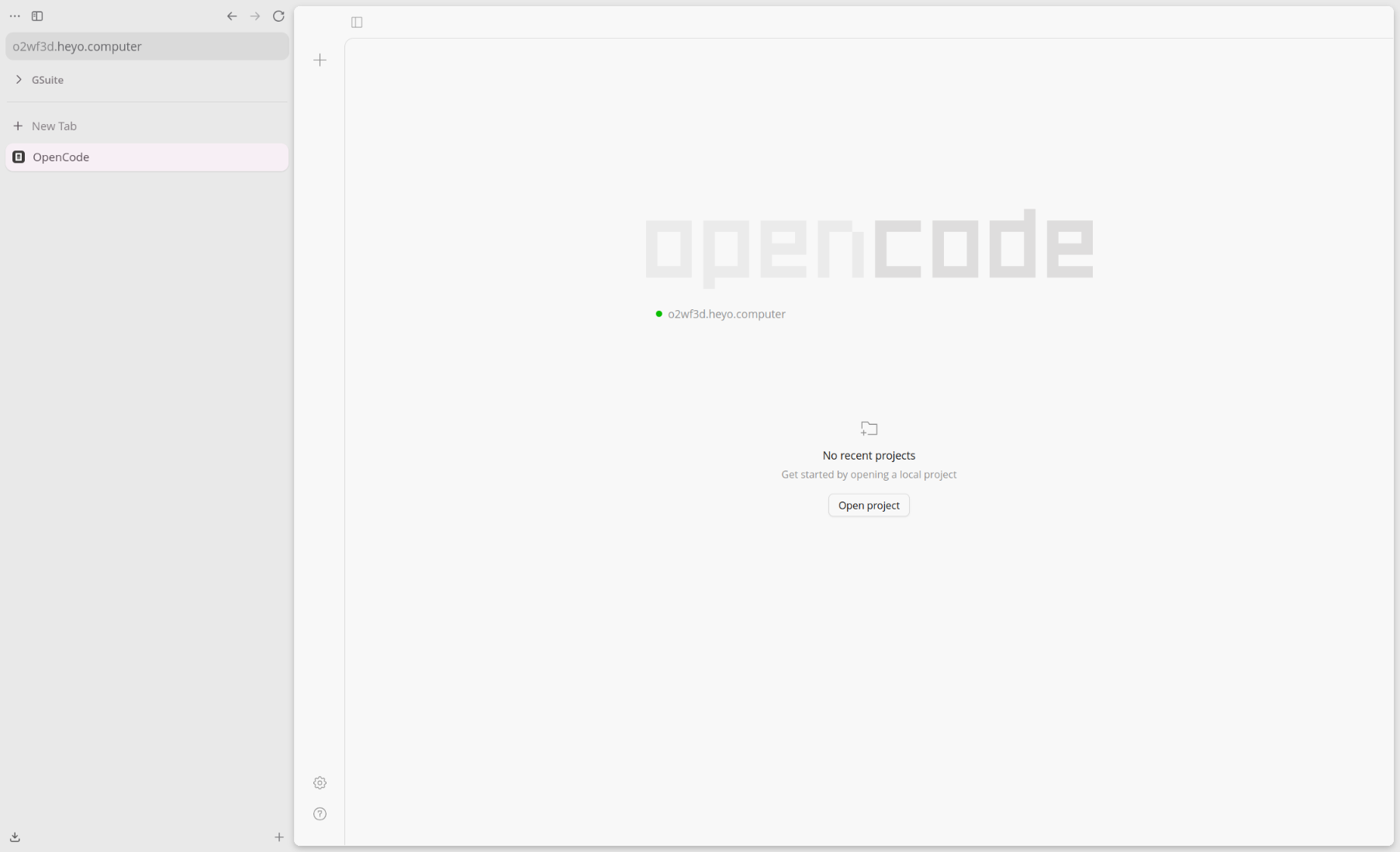
Now go to the link created when the sandbox launched, login to opencode (user opencode and the password you set above)
Next Steps
When you close the shell session, opencode will be killed as well. To keep it running, you can detach the shell session by using Tmux or you install the desktop app and use the "Detach" option after launching. By default however, the VM will be paused after a set about of time. You can set the TTL to zero to keep it running indefinitely or you can add a start command so that everytime the VM boots, it will run the opencode session.
(PS - don't throw an agent on the web unprotected, the web will not be kind to you. Set a secret or use Heyo Computer private endpoints to gate the application)