The core of the Heyo Web Services is the app-lb (get it here). The app-lb is somewhat like a reverse proxy (think NGINX or Traefik) combined with a control plane for virtual machines. There's a special plugin called tunnel that lets you use the public Heyo Computer app-lb to forward traffic to your local machine using, you guessed it, a QUIC based P2P tunnel. This way you can selectively serve applications on a local box, control VMs, and have TLS handled for you.
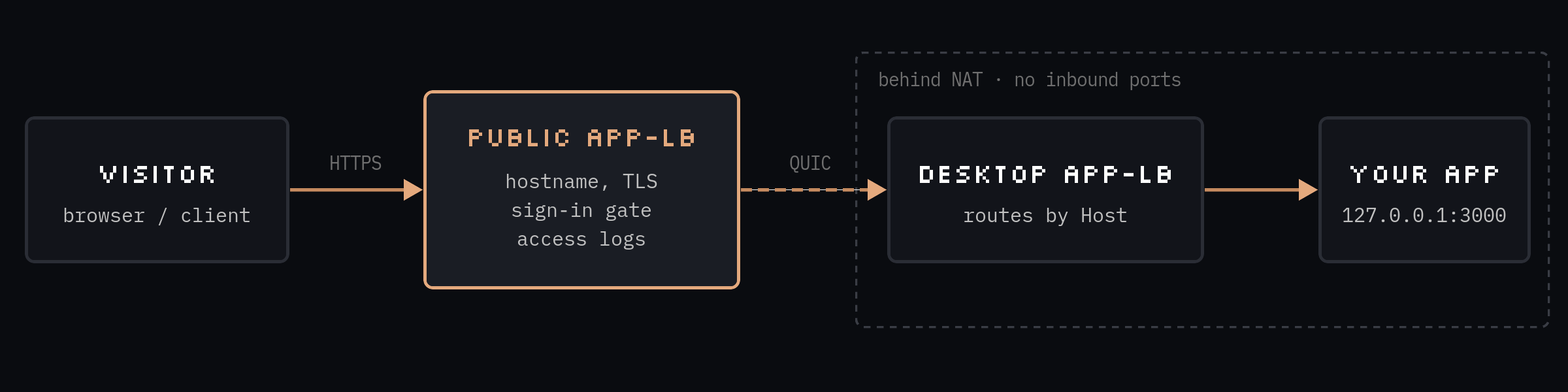
In this guide we'll be assuming that you have a Heyo Computer account and a namespace to use - if you self-host Heyo Web Services, its the same, just plug in your own domains.
You'll need to install the heyctl CLI. You can do that here. Run heyctl plugins describe tunnel to get started with tunnels locally.
Prerequisites
- A namespace on a public app-lb, and a credential with sufficient permissions (namespace admin or operator)
- A desktop that can build and run app-lb. It needs outbound internet access and KVM support is required if you intend on running VMs, although app-lb can forward to a process on the host as well, so if you protect your endpoint, you can also go this route (please protect your endpoints)
heyctlinstalled- a Rust toolchain for building the app-lb
- Something to expose on the desktop. This guide uses a web server on
127.0.0.1:3000.
Step 1: Run the desktop app-lb
Build app-lb from source and start it with its listeners on loopback. Visitors never connect to the desktop directly; they reach it through the tunnel.
git clone https://github.com/Heyo-Computer/hws.git && cd hws/app-lb
cargo build --release

mkdir -p ~/.app-lb && cd ~/.app-lb
APP_LB_PROXY_ADDR=127.0.0.1:6188 \
APP_LB_ADMIN_ADDR=127.0.0.1:9090 \
APP_LB_INSTANCE_LOCK=off \
~/hws/app-lb/target/release/app-lb
- Where state lives: app-lb keeps its state, secrets and tunnel key in the directory it starts in. Starting it in the same directory every time keeps the same tunnel identity across restarts.
- No heyvm needed: a deployment that forwards to a local port, like the one in Step 4, doesn't need
heyvm. You only need it to run VMs on the desktop.
In another terminal, point heyctl at it:
heyctl config set-context desktop --server http://127.0.0.1:9090 --current
Step 2: Create a tunnel token on the public app-lb
A tunnel token can only register the tunnels it names in one namespace. It can't read, deploy or change anything else.
heyctl --context prod token mint desktop --namespace myteam --tunnel desktop -q
# applb_…   (shown once)
Step 3: Configure the tunnel plugin on the desktop
Store the token as a secret on the desktop app-lb, then enable the plugin and point it at the public app-lb:
heyctl create secret tunnel-sec --from-stdin token
# paste the applb_… token, then Ctrl-D

heyctl plugins set tunnel --enable -f - <<'JSON'
{"provider": "app-lb",
 "remote": "https://admin.us5.heyo.work",
 "namespace": "myteam",
 "token": {"secret": "tunnel-sec", "key": "token"},
 "tunnels": [{"name": "desktop", "hostnames": ["desktop--myteam.us5.heyo.work"]}]}
JSON
Hostnames: unless the operator declares other hosts for the namespace, it may claim one-label names of the form <name>--<namespace>.us5.heyo.work. These are covered by the existing wildcard DNS, so you don't need to add records.
The desktop registers right away and then every minute. On the public app-lb this creates a deployment named desktop of kind tunnel in your namespace:
heyctl --context prod get deployments -n myteam
plugins set replaces the whole configuration. To add a hostname later, read the current config with heyctl plugins describe tunnel first, then send back the full list.
Using Heyo Cloud instead
If the desktop is signed in with heyvm login, skip Step 2. Name a subdomain and the tunnel serves it at <subdomain>.heyo.computer:
heyctl plugins set tunnel -f - <<'JSON'
{"hostnames": [{"subdomain": "my-desktop"}]}
JSON

heyctl plugins describe tunnel
# "hostname": "my-desktop.heyo.computer", "is_public": true
Use that hostname as --host in Step 4.
Step 4: Deploy to the desktop
On the desktop app-lb, create a deployment that routes the tunnel hostname to your app:
heyctl create deployment my-app \
  --host desktop--myteam.us5.heyo.work \
  --upstream 127.0.0.1:3000
The desktop routes by Host, so the deployment's host route must match the hostname you registered. The plugin card in the desktop dashboard also has a "Route to" picker that adds the route for you.
Health checks: app-lb probes / by default. If your app requires credentials, point --health-path at a route that answers without them.
Step 5: Verify
curl -i https://desktop--myteam.us5.heyo.work/
The first request can take a few seconds while the public app-lb issues the certificate. Requests then show up in both access logs: the public app-lb's and the desktop's.
Step 6: Restrict who can reach it (optional)
By default the hostname is public. To require a Heyo sign-in, add a gate to the tunnel deployment on the public app-lb. This requires any user to have access to the namespace in order to access your application. For APIs that can't redirect to a signin page, you can create a flow to generate a JWT for your user and pass that in, or rely on your own authentication mechanism. For the love of god, don't leave workloads on your device open to the public internet without something in place.
heyctl --context prod set auth desktop \
  --provider-ref heyo --allow-email you@example.com
The heyo auth provider must be declared in the deployment's namespace. If it isn't, create it first with heyctl --context prod create auth-provider heyo -n myteam --preset heyo-jwks.
APIs: the sign-in gate redirects to a login page, which curl and SDKs can't follow. Put a bearer key in the app itself for anything programs call, and keep the gate for pages people open in a browser.
How it behaves
- Only the public app-lb can connect. The desktop accepts streams only from the endpoint ids returned when it registered, and refuses any other caller before reading a byte.
- Only registered hostnames are served. A tunnel request for any other
Hostgets421. - Registrations are signed. Each one carries a signature from the desktop's own key, so no namespace can point a hostname at a machine it doesn't hold.
- Visitor IPs are trustworthy. The visitor's IP arrives as
X-Heyo-Client-IP. The public side sets it, and the desktop trusts it only on tunnel traffic. - Restarts and limits:
- Public app-lb restarts don't cut requests.
- Restarting the desktop app-lb drops the requests in flight at that moment, then it re-registers at once.
- Each namespace can hold up to 10 tunnels.
Troubleshooting
503 tunnel offline: the desktop hasn't refreshed its registration within the lease (300 seconds by default), or the public app-lb can't reach it. Check that the desktop app-lb is running and the plugin card shows it registered.401on registration: the token was revoked, expired, or minted for a different namespace or tunnel name. Mint a new one and update thetunnel-secsecret.403or409on registration: the hostname is outside what the namespace may claim, or another namespace already routes it. The plugin card shows the public app-lb's message.404from the desktop: the request reached the desktop, but no deployment there routes that hostname. Add the host route from Step 4.- Deployment shows 0 healthy upstreams: the health check is hitting a route that needs credentials or doesn't exist. Set
--health-pathto an open route. - A hostname disappeared after
plugins set: the new config replaced the old one. Send back the fullhostnameslist. - Large uploads fail: Check your app's payload limits, such as its HTTP body size or message size on a queue.
421 Misdirected Request: theHostisn't one the desktop registered. Add it tohostnamesin the plugin config.- Slow responses: the tunnel adds at least one network hop to use the relay and connect to your device; try using
tracerouteto see what's problematic (e.g. your home ISP)