KVM, and its cousin Firecracker, are Linux virtualization technologies that provide hardware level isolation and performant virtual machines. Depending on the image you create, these VMs can also optimize density on the host.
KVM, or kernel virtual machine, "images" consists of two parts: a kernel and a root filesystem, as opposed to a traditional "ISO" which packages a VM into a single artifact. Here we will use a Dockerfile to build out the root filesystem, or rootfs, for a custom VM.
Note that we will be using the heyvm CLI in several places but the artifacts produced here are compatible with any appropriately configured host.
Prerequisites
- A Linux host with KVM (
/dev/kvmpresent and accessible) heyvmCLI installed and up to date (helpful, not required)dockerandmke2fs(frome2fsprogs) installed — the build pipeline uses both
Make sure you're up to date with the CLI before starting:
heyvm --upgrade
The CLI has a built in readiness check for several backends, including KVM and Firecracker:
heyvm test-firecracker
Step 1: Use Agent skills to write the Dockerfile
The heyvm CLI can help install skills for agents such as Claude Code to help write the Dockerfile. This is helpful for bootstrapping the Dockerfile in a single shot and then tailoring it later. The skills can be installed via CLI or skills.sh:
# via heyvm cli:
heyvm install-skill

# via skills.sh:
npx skills add heyo-computer/skills
After that, use the skill to have your agent bootstrap the file for you:
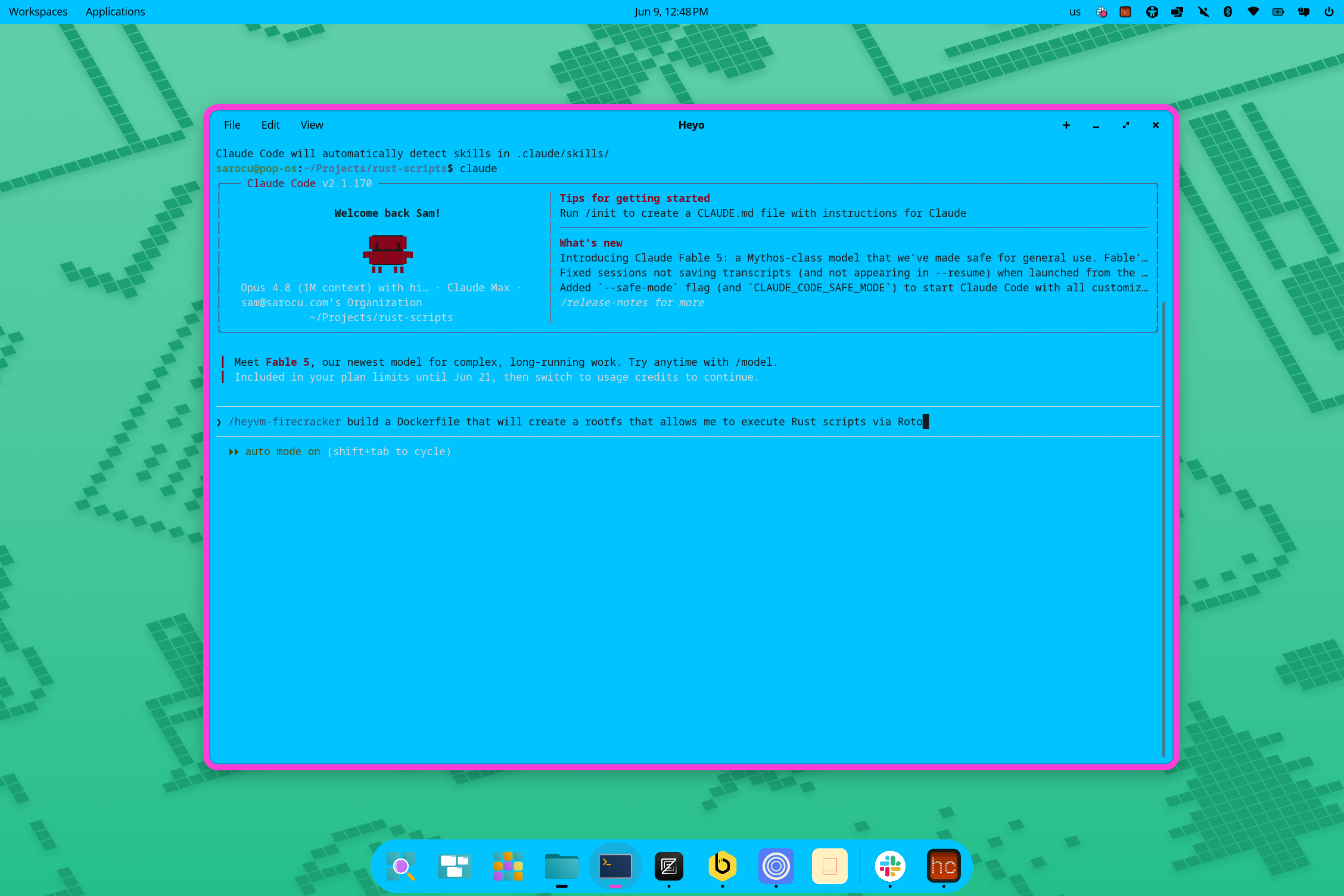
Step 2: The Dockerfile
Start from a standard distro base — ubuntu:24.04 is big but has a lot of utilities ready to go; use Debian or Alpine for smaller images.
FROM ubuntu:24.04

RUN apt-get update && apt-get install -y --no-install-recommends \
    openssh-server \
    iproute2 \
    socat \
    # --- your application packages go here --- \
    && rm -rf /var/lib/apt/lists/*
A few rules that matter more than they look:
- Keep it small. The ext4 rootfs is sized automatically (tar size × 1.2 + 64 MB, minimum 128 MB). A bloated image is a slow-booting image. Use
--no-install-recommendsand clean apt caches in the same layer. - No systemd. Nothing starts your services for you. Whatever you install, you'll start it by hand in the init script (Step 4).
- Install
socat. heyvm uses it inside the guest to stream your app's stdout and stderr to the host over vsock, which is how they reachheyvmlogs, app-obs andheyctl logs. Without it the output stays in/var/log/heyvm-start.loginside the VM and disappears with it. Any socat from Alpine, Debian or Ubuntu works (it needs VSOCK support, socat 1.7.4+). ENTRYPOINT/CMDare not the boot command. There's no Docker runtime in the VM. The kernel boots via aninit=parameter that points at/init.sh.CMD ["/init.sh"]only tells the builder what the default command is.
These constraints are the whole mental model: the Dockerfile builds a filesystem, and /init.sh is the only thing that runs at boot.
Step 3: Include SSH support
If you plan to access the VM via SSH (or use the sh command in heyvm), you need to configure SSH in the rootfs. Unlike VMs created using libvirtd (an analogue of EC2), there isn't a cloud-init step which configures accounts and configurations, so we need to setup ahead of time:
# Configure SSH for VM access.
# Pre-generate host keys at build time so sshd doesn't block on entropy at boot.
# Explicitly enable PasswordAuthentication — Ubuntu 24.04 ships it disabled
# in /etc/ssh/sshd_config.d/ and there's no cloud-init to flip it.
RUN mkdir -p /run/sshd /etc/ssh/sshd_config.d \
    && echo "PermitRootLogin yes" >> /etc/ssh/sshd_config \
    && echo "PermitEmptyPasswords yes" >> /etc/ssh/sshd_config \
    && echo "PasswordAuthentication yes" > /etc/ssh/sshd_config.d/50-heyo.conf \
    && chmod 644 /etc/ssh/sshd_config.d/50-heyo.conf \
    && passwd -d root \
    && useradd -m -s /bin/bash heyo \
    && echo 'heyo:heyo' | chpasswd \
    && ssh-keygen -A
What we're accomplishing here:
ssh-keygen -Aat build time. Generating host keys at first boot is painfully slow inside a microVM with limited entropy. Bake them in.PasswordAuthentication yesin a drop-in. Ubuntu 24.04 disables password auth by default. Writing your own file under/etc/ssh/sshd_config.d/guarantees it's on — without this, deployed sandboxes can never get a shell.- The
heyouser (passwordheyo). This is the standard non-root accountheyvm execandheyvm shexpect.
The sshd process gets started later, in the init script — see the next step. If you just need some code to run at initialization, then you can skip the SSH setup but it will be useful for debugging.
Step 4: The init script
This is what runs as PID 1 when the VM boots. It has to set up everything a container runtime or systemd would normally handle: virtual filesystems, device nodes, networking, then your services. Here's the canonical script the skill generates:
# Boot script — runs as PID 1 (no systemd).
RUN printf '#!/bin/sh\n\
mount -t proc proc /proc\n\
mount -t sysfs sysfs /sys\n\
# Docker-exported rootfs has an empty /dev — populate it via devtmpfs,\n\
# falling back to manual mknod so sshd has /dev/null, /dev/urandom, etc.\n\
mount -t devtmpfs devtmpfs /dev 2>/dev/null\n\
if [ ! -c /dev/null ]; then\n\
    mknod -m 666 /dev/null    c 1 3\n\
    mknod -m 666 /dev/zero    c 1 5\n\
    mknod -m 444 /dev/random  c 1 8\n\
    mknod -m 444 /dev/urandom c 1 9\n\
    mknod -m 666 /dev/tty     c 5 0\n\
    mknod -m 666 /dev/ptmx    c 5 2\n\
    ln -sf /proc/self/fd /dev/fd\n\
fi\n\
mkdir -p /dev/pts && mount -t devpts devpts /dev/pts\n\
dmesg -n 1 2>/dev/null\n\
echo "nameserver 8.8.8.8" > /etc/resolv.conf\n\
hostname firecracker\n\
ip link set eth0 up 2>/dev/null\n\
mkdir -p /run/sshd && chmod 755 /run/sshd\n\
/usr/sbin/sshd -D -e 2>/tmp/sshd.log &\n\
# --- start your services here, e.g.: ---\n\
# my-service --config /etc/my-service.conf &\n\
echo "HEYVM_READY"\n\
while :; do /bin/bash --login; sleep 0.1; done\n' > /init.sh \
    && chmod +x /init.sh

EXPOSE 22 # add your application ports, e.g. EXPOSE 22 5432

CMD ["/init.sh"]
Notes:
- Mount the virtual filesystems yourself.
/proc,/sys,/dev, and/dev/ptsdon't exist at boot. A Docker-exported rootfs has an empty/dev— if you don't mount devtmpfs (ormknodthe nodes manually),sshdcan't open/dev/nulland silently fails to start. - Create
/run/sshdat boot. The privilege-separation directory may not survive the export → ext4 conversion, even if you made it in the Dockerfile. Recreate it before launching sshd. - Run
sshd -D -ewith stderr to a file. Foreground mode (-D), errors to/tmp/sshd.log— not stderr. Stderr is the serial console, and stray output there corrupts the marker protocolheyvm execrelies on. echo "HEYVM_READY"is mandatory. The host watches the serial console for this exact string to know the VM is up. Drop it and the VM will appear to hang forever during startup.- End with the bash respawn loop, not
exec /bin/sh. If PID 1 exits, the kernel panics. Thewhile :; do /bin/bash --login; sleep 0.1; doneloop keeps the VM alive and givesheyvm sha real prompt that survivesexit/ Ctrl-D. EXPOSEyour ports. Always 22 for SSH, plus whatever your service listens on.
A complete, working example lives at
third-party/Dockerfile.firecracker-nginxin the Heyo repo — an nginx server in a Firecracker microVM, end to end.
Step 5: Build the rootfs
Once the Dockerfile is ready, convert it to a bootable ext4 image - the CLI has a helper command for this:
heyvm mvm build --local-only -f ./Dockerfile.firecracker-postgres -n postgres
By default the ext4 image gets persisted to ~/.heyo/images/firecracker/<name>/rootfs.ext4.
You can confirm it via:
heyvm mvm images
Build options:
| Flag | What it does |
|---|---|
-f, --file |
Path to the Dockerfile |
-n, --name |
Image name/tag — this is what you'll pass to heyvm create |
--local-only |
Build locally, skip the cloud upload |
-c, --context |
Build context dir (defaults to the Dockerfile's parent) |
--size-mb |
Override the auto-computed rootfs size |
You can do this manually too, although the CLI is free for local usage:
  # 1. Build a normal Docker image from your Dockerfile
  docker build -f Dockerfile.firecracker-postgres -t postgres-rootfs .

  # 2. Create a container (don't run it) so its filesystem can be exported
  CID=$(docker create postgres-rootfs)

  # 3. Export the container's filesystem to a tar, and unpack it into a staging tree
  mkdir -p rootfs-staging
  docker export "$CID" | tar -x -C rootfs-staging

  # 4. Turn that directory tree into an ext4 rootfs image.
  #    -d packs the dir contents in at mkfs time; size the file first.
  #    (heyvm auto-sizes as: tar size × 1.2 + 64 MB, min 128 MB)
  truncate -s 512M rootfs.ext4
  mke2fs -t ext4 -d rootfs-staging -F rootfs.ext4

  # 5. Clean up the temporary container (and staging dir)
  docker rm "$CID"
  rm -rf rootfs-staging
Step 6: Optional - Boot a VM via CLI
So now you have half of what you need to start a VM with either KVM or Firecracker, you still need a kernel to boot with. A standard 6.1 Linux kernel is fetched automatically the first time you start a sandbox, but you can grab it ahead of time with heyvm mvm fetch-kernel.
To push the image to the Heyo cloud instead of building locally, drop --local-only (you'll need to heyvm login first).
Create a sandbox from the image you just built. The --image value matches the -n name from the build:
heyvm create --name pg --backend-type firecracker --image postgres
# open an interactive shell on the VM
heyvm sh pg

# or run a one-off command
heyvm exec pg -- pg_isready
If your image exposes a service port, bind it and start using it like any other sandbox. To run the same image in the Heyo cloud rather than locally, build without --local-only to upload it, then create with --cloud:
heyvm create --cloud --name pg --backend firecracker --image postgres --port 5432